This problem can come about due to a number of reasons, some of which are addressed in the following steps:
1. Check that you are Connected to Broadband Connection and test the connection on a few different websites such as http://www.google.com and http://www.bbc.co.in. If you can access another website address, the problems lie with the page you were trying to visit and you should contact the site owner directly to pursue this matter.
2. Delete your temporary Internet files and cookies. To do this, follow these steps:
- Click Start, point to Settings, and then click the Control Panel
- Double-click Internet Options.
- Click the Temporary Internet Files, click the Settings button.
- Then click the Delete Cookies button and confirm this decision by clicking yes at the next prompt.
- Next click the Delete Files button and confirm this decision by clicking yes at the next prompt.
- Click OK to apply these settings.
- Now Shutdown and Restart your Computer and test your connection to see if this has resolved the problem
3. If you are using any firewall/internet security/proxy software such as Norton or Zone Alarms try temporarily disabling it. This should be done by breaking your Internet Connection and then reconnecting and testing on reliable websites such as www.google.com. If you can see pages with the firewall disabled you will have to investigate your firewall settings with the company who supplied the firewall. If this makes no difference continue with the following steps.
If you are to connect to the Internet using other applications such as Microsoft Outlook Express or MSN Messenger this indicates that your firewall has not been configured correctly.
1. Ensure that you are currently connected to the Internet by running a ping connection test. This can be done by clicking on Start and then Run and then type command (making sure to remove anything else from the field) and then click OK.
Type ping 127.0.0.1 into the black command prompt, and then press ENTER on your keyboard. If you receive four replies, go to step 6.
2. If you are running Internet Explorer from version 6 onwards some files can become corrupted causing this problem and can be resolved by running a quick repair. In order to establish which version of Internet Explorer you are running click Help and then About Internet Explorer which will display your version number. In order to repair it follow these steps:
- Click Start and then Control Panel (or Settings and then Control Panel)
- Double click on Add-Remove Programs
- Highlight Internet Explorer
- Click Change-Remove tab
- Select Repair Internet Explorer
- Then click OK to confirm this
Once this has been completed restart your computer and then test your connection to see if you can now view webpages
3. This problem can sometimes come about due to corruption of TCP/IP which can be refreshed or reinstalled depending on your operating system. If you are running Windows XP you can simply refresh your TCP/IP by clicking on Start then Run and then typing command and then click OK. In the black command prompt type in netsh int ip reset resetlog.txt and then press ENTER on your keyboard. It should return back to a blank line into which you can type exit to close the command prompt.
- If you are running any other Operating System (Windows 98, ME, 2000), make sure you have your Windows installation CD which came with your computer and then follow these steps to reinstall and configure TCP/IP:
1. Click Start, point to Settings, click Control Panel, and then double-click Network.
2. On the Configuration tab, click Add, click Protocol, and then click Add.
3. In the Manufacturers box, click Microsoft, in the Network Protocols box, and then click TCP/IP.
4. Click OK two times, and then click yes when you are prompted to restart your computer. If you are not prompted to restart your computer, do so manually.
4. You can restore your computer to an earlier date in case something has corrupted since last time you connected. NOTE: Any updates or software installations you have made since The method for undertaking a system restore will differ depending on your operating system (To determine which operating system you are running click on Start and you will see the name in a blue bar along the left hand side of the Start Menu):
o Windows 98: This can only be run in MS-DOS mode so you will have to click on Start then Shut Down and then select Restart in MS-DOS mode. The computer will then start with a black screen with a prompt like C:\WINDOWS> where you must type in scanreg /restore and then press Enter on your keyboard. This will then restore
o Windows ME: Click on Start then Programs then Accessories then System Tools and then select System Restore. If you have enabled System Restore in the past this will work otherwise you may receive a message advising that it has been turned off in which case no restore points will have been made. In this case continue to Step 8.
o Windows 2000: This is not possible in Windows 2000 - please continue to Step 8.
Windows XP: Click on Start then Programs then Accessories then System Tools and then select System Restore. You will then see a Restore Wizard which will prompt you to Restore your computer to an earlier time. With this option selected click Next. You will then see a calendar with bold dates whenever a restore point had been created. Select a date for a system checkpoint when you were able to view webpage’s and then click on Next. Bear in mind you will lose any changes you may have made after this date including new files, software or updates. You can now confirm the System restore by clicking on Next which may take a while to restart your system with the preconfigured settings. Then retest your connection for the ability to view webpage’s.
Saturday, June 20, 2009

Tuesday, June 9, 2009
How to uninstall Internet Explorer 7
There are two methods for uninstalling Windows Internet Explorer 7:
· Method 1: Use Add or Remove Programs
· Method 2: Use Spuninst.exe
Start with the first method. If it does not work, try the second method.
This article is intended for a beginning to intermediate computer user.
You may find it easier to follow the steps if you print this article first.
Important If you Installed Windows XP SP3 on your computer after you installed Internet Explorer 7, you need to uninstall Windows XP Service Pack 3 before you can uninstall Internet Explorer 7.
For more information, click the following article number to view the article in the Aks PC Article Blogs:
http://www.askpcexperts.com/blogs/ You cannot uninstall Internet Explorer 7 or Internet Explorer 8 Beta 1 after you install Windows XP Service Pack 3
The simplest way to uninstall Windows Internet Explorer 7 is to use Add or Remove Programs.
Step 1: Uninstall Internet Explorer 7
a. Click Start, and then click Run.
b. In the Open box, type appwiz.cpl, and then click OK. It may take several seconds for your computer to compile a list of programs.
c. Scroll down through the list and click Windows Internet Explorer 7, and then click Remove.
Step 2: Verify that Internet Explorer 6 is restored
To verify that Internet Explorer 6 is restored, follow these steps:
a. Click Start, and then click Run.
b. In the Open box, type iexplore. Windows Internet Explorer opens.
c. On the Help menu, click About Internet Explorer. The About Internet Explorer window opens.
d. If the Version number begins with 6, you have successfully uninstalled Internet Explorer 7 and restored Internet Explorer 6.
If this method did not work for you, try method 2
If method 1 did not uninstall Internet Explorer 7, try using the Spuninst.exe executable wizard on your computer.
Step 1: Make hidden files and hidden folders visible
a. Click Start, and then click My Documents.
b. On the Tools menu, click Folder Options.
c. Click the View tab.
d. In the Advanced settings list, under Hidden files and folders, click Show hidden files and folders, and then click OK.
Step 2: Uninstall Internet Explorer 7
To Uninstall Internet Explorer 7, follow these steps:
a. Click Start, and then click Run.
b. In the Open box, type %windir%\ie7\spuninst\spuninst.exe, and then click OK.
c. Follow the wizard instructions to uninstall Internet Explorer 7.
Step 3: Verify that Internet Explorer 6 is restored
To verify that Internet Explorer 6 is restored:
a. Click Start, and then click Run.
b. In the Open box, type iexplore. Windows Internet Explorer opens.
c. On the Help menu, click About Internet Explorer. The About Internet Explorer window opens.
d. If the Version number begins with 6, you have successfully uninstalled Internet Explorer 7 and restored Internet Explorer 6.
For more information on Windows Internet Explorer, Spy ware, Ad ware etc Call us on 1-888-889-3335 or visit Ask PC Experts and we shall be glad to help you.
· Method 1: Use Add or Remove Programs
· Method 2: Use Spuninst.exe
Start with the first method. If it does not work, try the second method.
This article is intended for a beginning to intermediate computer user.
You may find it easier to follow the steps if you print this article first.
Important If you Installed Windows XP SP3 on your computer after you installed Internet Explorer 7, you need to uninstall Windows XP Service Pack 3 before you can uninstall Internet Explorer 7.
For more information, click the following article number to view the article in the Aks PC Article Blogs:
http://www.askpcexperts.com/blogs/ You cannot uninstall Internet Explorer 7 or Internet Explorer 8 Beta 1 after you install Windows XP Service Pack 3
The simplest way to uninstall Windows Internet Explorer 7 is to use Add or Remove Programs.
Step 1: Uninstall Internet Explorer 7
a. Click Start, and then click Run.
b. In the Open box, type appwiz.cpl, and then click OK. It may take several seconds for your computer to compile a list of programs.
c. Scroll down through the list and click Windows Internet Explorer 7, and then click Remove.
Step 2: Verify that Internet Explorer 6 is restored
To verify that Internet Explorer 6 is restored, follow these steps:
a. Click Start, and then click Run.
b. In the Open box, type iexplore. Windows Internet Explorer opens.
c. On the Help menu, click About Internet Explorer. The About Internet Explorer window opens.
d. If the Version number begins with 6, you have successfully uninstalled Internet Explorer 7 and restored Internet Explorer 6.
If this method did not work for you, try method 2
If method 1 did not uninstall Internet Explorer 7, try using the Spuninst.exe executable wizard on your computer.
Step 1: Make hidden files and hidden folders visible
a. Click Start, and then click My Documents.
b. On the Tools menu, click Folder Options.
c. Click the View tab.
d. In the Advanced settings list, under Hidden files and folders, click Show hidden files and folders, and then click OK.
Step 2: Uninstall Internet Explorer 7
To Uninstall Internet Explorer 7, follow these steps:
a. Click Start, and then click Run.
b. In the Open box, type %windir%\ie7\spuninst\spuninst.exe, and then click OK.
c. Follow the wizard instructions to uninstall Internet Explorer 7.
Step 3: Verify that Internet Explorer 6 is restored
To verify that Internet Explorer 6 is restored:
a. Click Start, and then click Run.
b. In the Open box, type iexplore. Windows Internet Explorer opens.
c. On the Help menu, click About Internet Explorer. The About Internet Explorer window opens.
d. If the Version number begins with 6, you have successfully uninstalled Internet Explorer 7 and restored Internet Explorer 6.
For more information on Windows Internet Explorer, Spy ware, Ad ware etc Call us on 1-888-889-3335 or visit Ask PC Experts and we shall be glad to help you.
Tuesday, June 2, 2009
Internet Fraud and Pop-Up, Advertising - Ask PC Experts
What are POP-UPS?
Pop Ups are additional browser windows that are generated automatically while you click/open a web page.
These Pop - Ups can be:
1. Advertisements: When you open a web page the site you are browsing may open along with it a hidden browser window which may be advertising something. This is one of the most common ways to advertise online. Especially because you have to click on to close the window. These ads can be designed to trick you to reveal personal information, track E-Mail Addresses etc. so it’s very important to be careful with them.
2. Links: These are generally used on online shopping web pages, wherein when you click on the smaller picture the larger picture of the same opens up in another Browser Helpwindow for a better viewer and a larger image of the product.
3. Downloads: While you log on to a site to download some software, when you click on download a new pop up window opens up for the same.
In a few cases pop ups appear even while you are not opening a web page. In such a case please check, your system may have a spy ware. Never, click on any link/download provided by a Pop Up window. This leads to a lot of times download of spy ware into your system without your knowledge. Such pop ups are generated by Ad – wares and Spy wares.
In the above case, scan you PC for spy ware and repair the same at earliest.
These Pop Ups can be blocked quiet easily. Blocking these Pop Ups will avoid all the hassle and in case you need one to download from an authentic site you can always press Cntrl key and click on the link.
Blocking Pop Ups:
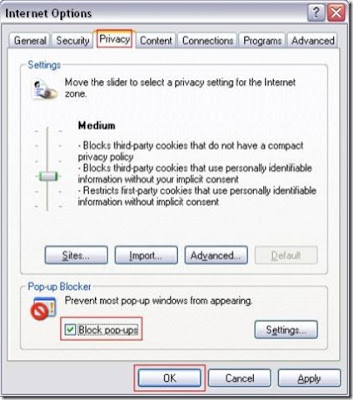
Internet Explorer
< Tools
< Pop Up Blocker
< Turn on Pop Up Blocker
For more information on Pop Ups, Spy ware, Ad ware etc Call us on 1-888-889-3335 or visit Ask PC Experts and we shall be glad to help you.
Pop Ups are additional browser windows that are generated automatically while you click/open a web page.
These Pop - Ups can be:
1. Advertisements: When you open a web page the site you are browsing may open along with it a hidden browser window which may be advertising something. This is one of the most common ways to advertise online. Especially because you have to click on to close the window. These ads can be designed to trick you to reveal personal information, track E-Mail Addresses etc. so it’s very important to be careful with them.
2. Links: These are generally used on online shopping web pages, wherein when you click on the smaller picture the larger picture of the same opens up in another Browser Helpwindow for a better viewer and a larger image of the product.
3. Downloads: While you log on to a site to download some software, when you click on download a new pop up window opens up for the same.
In a few cases pop ups appear even while you are not opening a web page. In such a case please check, your system may have a spy ware. Never, click on any link/download provided by a Pop Up window. This leads to a lot of times download of spy ware into your system without your knowledge. Such pop ups are generated by Ad – wares and Spy wares.
In the above case, scan you PC for spy ware and repair the same at earliest.
These Pop Ups can be blocked quiet easily. Blocking these Pop Ups will avoid all the hassle and in case you need one to download from an authentic site you can always press Cntrl key and click on the link.
Blocking Pop Ups:
Internet Explorer
< Tools
< Pop Up Blocker
< Turn on Pop Up Blocker
For more information on Pop Ups, Spy ware, Ad ware etc Call us on 1-888-889-3335 or visit Ask PC Experts and we shall be glad to help you.
Friday, May 1, 2009
How to Fix a Slow computer
How to Fix a Slow Computer is the question which is normally asked by a PC user. Everybody wants that their PC should respond fast to their every click. Particularly in this era of DSL and cable internet service, they want their PC to match the speed of today’s demands. So, when their PC does not match their expectations the option they choose is of buying a brand new computer. Let me tell you about “how to fix a slow computer by yourself?”
First, let’s glance at the reasons why computer respond so slow. One of the reasons for computers responding slowly is that they do not clean them at time intervals. And definitely I am not concerned about the dusting part. I am talking about the unused files and documents that are present in the system.

Now, it’s quite true that most of the unused data is of no requirement. And since they are present in different locations in the system and are a part of system so they use the Memory and Storage space in of the system. So, manage things in a way that once in a month or twice you should de-cluster those unused files. Just remove the files which are no longer required, and systematize the whole lot the way you can find it again.
The other way is of managing the registry files. These files are responsible for software handling and system restorations process. If they get ruined or mis-managed, then it will result in slow running of computer, as this will create problem for him to manage things. So by using Registry Fix or Registry Repair software you can make things better.
This can be done while sipping a cup of coffee. Just downloading the software and let the software run and inspect your computer. It will report all the errors present in the registry files to you. Then, it will fix those errors. Now your computer will be as fast as you just bought it new.
So, it’s all about making your computer run fast by cleaning the unused files and repairing the registry files. ou can also find various useful computer troubleshooting articles for your PC diagnosis. However it is available to subscribers of Ask PC Experts Service.
First, let’s glance at the reasons why computer respond so slow. One of the reasons for computers responding slowly is that they do not clean them at time intervals. And definitely I am not concerned about the dusting part. I am talking about the unused files and documents that are present in the system.
Now, it’s quite true that most of the unused data is of no requirement. And since they are present in different locations in the system and are a part of system so they use the Memory and Storage space in of the system. So, manage things in a way that once in a month or twice you should de-cluster those unused files. Just remove the files which are no longer required, and systematize the whole lot the way you can find it again.
The other way is of managing the registry files. These files are responsible for software handling and system restorations process. If they get ruined or mis-managed, then it will result in slow running of computer, as this will create problem for him to manage things. So by using Registry Fix or Registry Repair software you can make things better.
This can be done while sipping a cup of coffee. Just downloading the software and let the software run and inspect your computer. It will report all the errors present in the registry files to you. Then, it will fix those errors. Now your computer will be as fast as you just bought it new.
So, it’s all about making your computer run fast by cleaning the unused files and repairing the registry files. ou can also find various useful computer troubleshooting articles for your PC diagnosis. However it is available to subscribers of Ask PC Experts Service.
Monday, April 27, 2009
Remote Desktop Repair – big area of comprehensive services
Remote Desktop Repair is the area which is getting popular between people with a very fast speed and people now a day search for online desktop repair services rather than going to a computer mechanic. These remote desktop repair technicians repair almost all your troubles related to PC through remote desktop, but for this you should have a high speed Internet connection. Major companies charge on per hour basis.

If you want to locate such type of service provider then you just have to search on internet for Desktop Repair. This will help you the area in which they are proficient.
A remote Desktop repair person observes the whole system on a PC screen while solving your problem. Technology, these days helps you in assuming control of the whole procedure, if you feel something suspicious like Breach of Security. So, there is no harm in letting the remote Desktop repair person do the repair work. Sometimes, procedures for repairing are given from remote location and you have to follow the procedure step by step.
Most of the time it happens that the remote connection program is uninstalled after use and re-installed when required. No doubt all this procedure is secure and hassle-free but then also you should get the services from good referred company. This will help you in getting better services and in affordable price also. Remote desktop repair helps in resolving of many areas of problem like trouble shooting, Virus and Pest Removal, software implementation, up gradation, disk cleaning, spy ware removal and PC optimization.
It should be taken in concern that the success rate of remote desktop repair is very high as compared to the old traditional way of calling technical repair person. Another advantage of getting this type of services is that it’s affordable and also you no need to take your system here and there as the repairing work is done remotely.
Desktop Repair provides comprehensive information on Desktop Support, Computer Support, Computer Help, Computer Repair Software and more. No need to take your system here and there as the repairing work is done remotely.
Desktop Repair provides comprehensive information on Desktop Support, Computer Support, Computer Help, Computer Repair Software and more.
If you want to locate such type of service provider then you just have to search on internet for Desktop Repair. This will help you the area in which they are proficient.
A remote Desktop repair person observes the whole system on a PC screen while solving your problem. Technology, these days helps you in assuming control of the whole procedure, if you feel something suspicious like Breach of Security. So, there is no harm in letting the remote Desktop repair person do the repair work. Sometimes, procedures for repairing are given from remote location and you have to follow the procedure step by step.
Most of the time it happens that the remote connection program is uninstalled after use and re-installed when required. No doubt all this procedure is secure and hassle-free but then also you should get the services from good referred company. This will help you in getting better services and in affordable price also. Remote desktop repair helps in resolving of many areas of problem like trouble shooting, Virus and Pest Removal, software implementation, up gradation, disk cleaning, spy ware removal and PC optimization.
It should be taken in concern that the success rate of remote desktop repair is very high as compared to the old traditional way of calling technical repair person. Another advantage of getting this type of services is that it’s affordable and also you no need to take your system here and there as the repairing work is done remotely.
Desktop Repair provides comprehensive information on Desktop Support, Computer Support, Computer Help, Computer Repair Software and more. No need to take your system here and there as the repairing work is done remotely.
Desktop Repair provides comprehensive information on Desktop Support, Computer Support, Computer Help, Computer Repair Software and more.
Tuesday, April 21, 2009
How Remote Computer Repair Works – The Enigma Revealed
Computer is now a day an inseparable part of every human being and whether you are at home or at your office, or anywhere else. With improvement in technology, the complications have also increased. This generates a requirement for technical support by computer support professionals. Most of the online computer repair service providing companies have a complete team of certified professionals and help desk support workers.
These Professionals examine the troubles areas and facilitate technical support for computer problems including hardware, software, and system repair. The general procedure with which these professionals resolve a trouble is remote computer repair. A different approach of providing computer repair support is, over phone, in which the professional gives you the instruction and you execute them yourself.
As far as I think, it’s much better if you avail the first option of having remote computer repair for an effective troubleshooting. Professionals work either for the computer hardware or software Vendor Company or works within a company that uses computer systems, these experts work for support services firms, for which they provide computer support or PC repair services to clients or customers.
Remote computer support professionals receive the customer’s doubts from their terminals through the procedure known as remote desktop connection. This facilitates the experts to connect to customer’s computer remotely using a user-ID and password. The experts first execute automatic diagnostics plans to resolve problems. They also do the maintenance and repair work for computer hardware and software if required.
In response to their inquiries, online computer repair professionals listen to the customers with awareness and reply them normally along with taking them through the problem-solving procedures. Help – desk professionals interact directly with customer problems. Also, the customers are facilitated with Online PC Tech Support – 24x7x365. This method of providing remote computer support is spreading with fast speed as it offers the both affordable as well as quality troubleshooting. Also, now you don’t have to wait for your PC to come back in weeks from computer repairs shop.
You can check for Remote computer repair services by using keywords like Online Computer Technical Support, Online Computer Repair Services Online PC Repair, and PC Repair Services etc. This will help in refining your search as well as getting you the relevant results. The service can be subscribed to by signing up.
These Professionals examine the troubles areas and facilitate technical support for computer problems including hardware, software, and system repair. The general procedure with which these professionals resolve a trouble is remote computer repair. A different approach of providing computer repair support is, over phone, in which the professional gives you the instruction and you execute them yourself.
As far as I think, it’s much better if you avail the first option of having remote computer repair for an effective troubleshooting. Professionals work either for the computer hardware or software Vendor Company or works within a company that uses computer systems, these experts work for support services firms, for which they provide computer support or PC repair services to clients or customers.
Remote computer support professionals receive the customer’s doubts from their terminals through the procedure known as remote desktop connection. This facilitates the experts to connect to customer’s computer remotely using a user-ID and password. The experts first execute automatic diagnostics plans to resolve problems. They also do the maintenance and repair work for computer hardware and software if required.
In response to their inquiries, online computer repair professionals listen to the customers with awareness and reply them normally along with taking them through the problem-solving procedures. Help – desk professionals interact directly with customer problems. Also, the customers are facilitated with Online PC Tech Support – 24x7x365. This method of providing remote computer support is spreading with fast speed as it offers the both affordable as well as quality troubleshooting. Also, now you don’t have to wait for your PC to come back in weeks from computer repairs shop.
You can check for Remote computer repair services by using keywords like Online Computer Technical Support, Online Computer Repair Services Online PC Repair, and PC Repair Services etc. This will help in refining your search as well as getting you the relevant results. The service can be subscribed to by signing up.
Sunday, October 19, 2008
Online PC Support
Computer Problems increasing in our day to day life!!!!!!
Every now and then you have dealt with computer problems. No matter how proficient you are, it bound to happen that your computer might get stuck while running and that time you might think that how to fix computer problems. It's very tough to fix computer problems online. There is a requirement in our day to day life helping us with a diversity of services to assist you stay active and secure in the fast paced technological era we live in today. PC Experts can fix your PC in a variety of ways. Every now and then you might face problems related to your computer. There are many problems that occur frequently on our computers and we have to be active for such types of computer security problems.
You find CPU is on but no appearance in monitor then check that whether monitor is turn on or not. Similar with printer and scanners, checked each and every AC and also check the cable that connects the printer or scanner with computer. Moreover, take care about the pages are fed in printer properly or not and check ink cartridges also before use. For Mouse and Keyboard check that are their drivers installed properly or not. Check the plugs of keyboard and mouse are connected with computer. If your computer takes more time to boot then go to startup there you'll find the list of some programs those are running with your start pane. These programs must have marked sign in check box, you just unchecked them. To prevent virus PC Experts suggest you that try to evade unlawful websites or ads. Do not attempt to download corrupt files or folders through internet. Additionally always keep back up for your files.
PC Experts do fix computer problems Online for you. They stick with your computer troubles over the Internet and Bring Online PC solutions for fix computer problems to you. As the evaluation of your computer is done, the technician lets you know about the cost to get your computer repaired. Now it's up to you, that you want to get it repaired or not.
Some of the most common computer problems are as follow:
1. Computer starting problem
2. Printer does not working
3. Scanner making problem in scan
4. Mouse not moving properly
5. Mouse not moving at all
6. Keyboard not working
7. Computer takes lot of time to boot
8. Computer making problem in shut down
9. Driver Installation problems
10. Slow Speed
11. Reboot Problem
12. Virus/Trojans/Spywares
14. RAM Supporting Problem
Apart from that, computer virus is a part of malevolent program which is capable to influence the normal process of your PC. However, Ask PC Experts provide you pc repair utilities and they guarantee you that now you need not to worry about Computer virus problems.
To determine Computer starting problem I suggest you to checks all the plugs are properly connected with sockets or not. Ask PC Experts also has an extensive Knowledge Base of computer problem resolutions and tips to make computer fast. You can also find various useful computer troubleshooting articles for your PC diagnosis. However it is available to subscribers of Ask PC Experts service.
Subscribe to:
Posts (Atom)